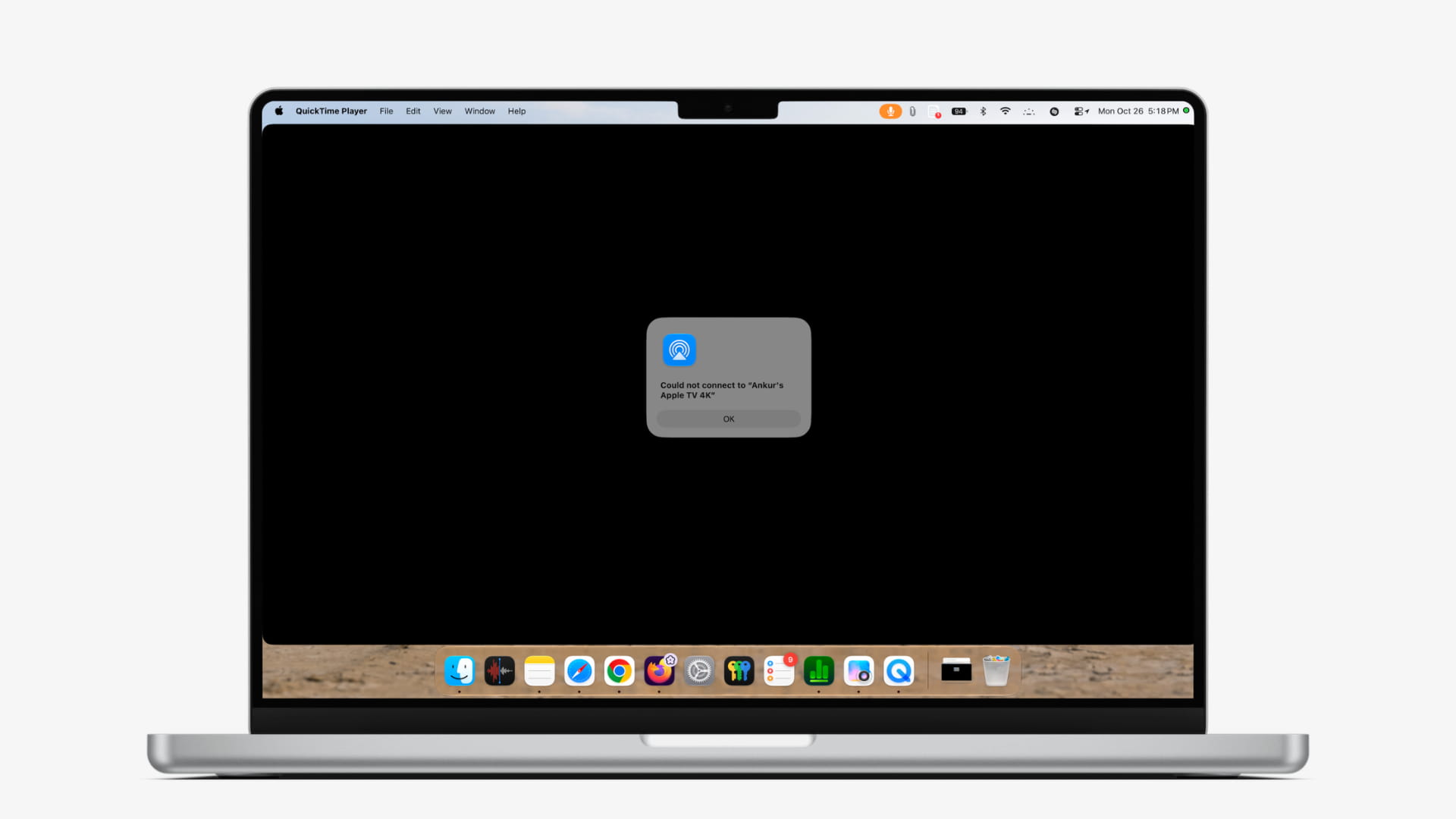
Learn what to do if you cannot take screenshots or screen recordings of your Apple TV screen because it fails to show up in QuickTime Player on your Mac.
To take a screenshot or make a recording of your Apple TV screen :
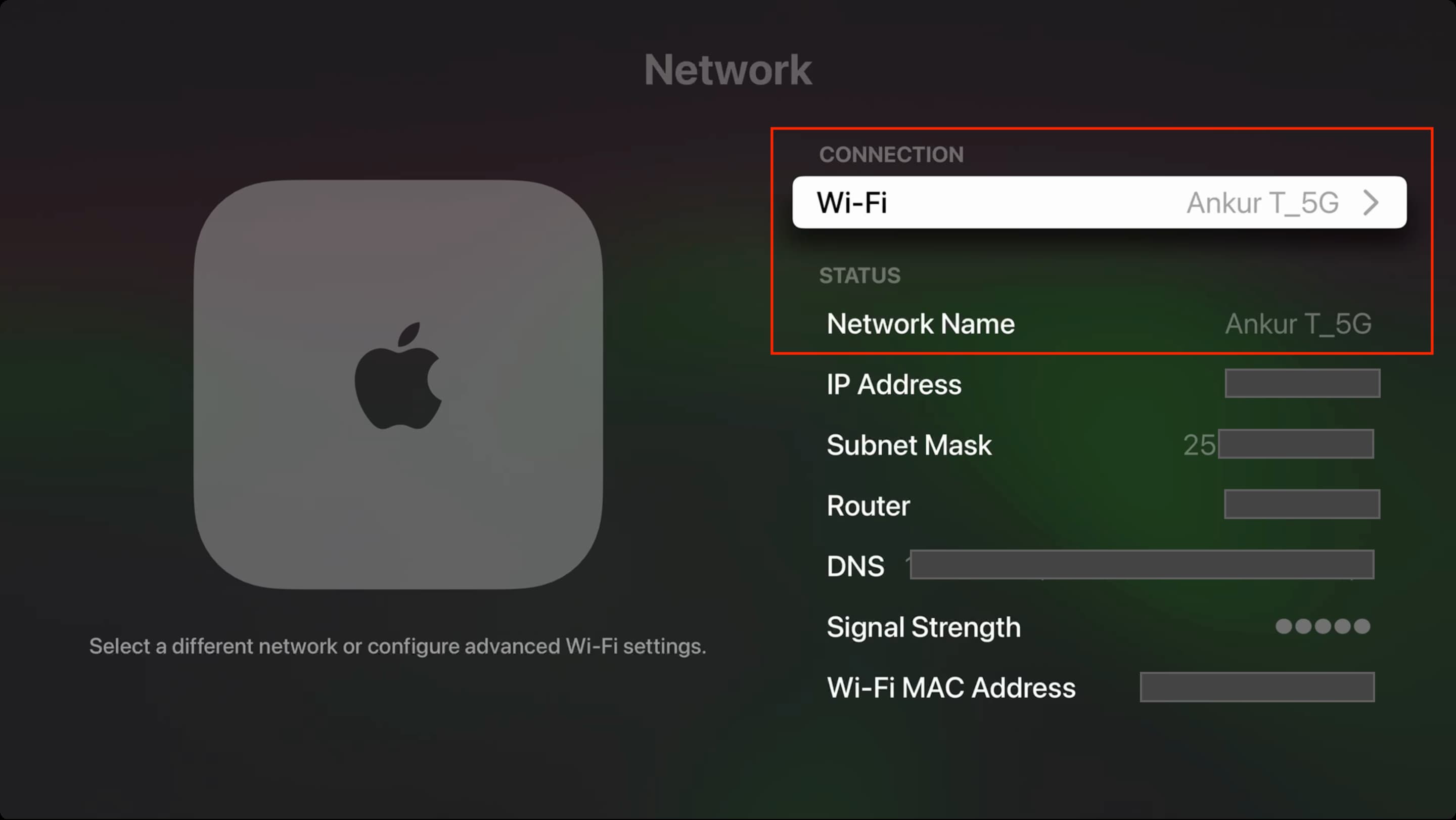
Connect Apple TV to the same Wi-Fi as your Mac.
Open Apple QuickTime Player.
Click File > New Movie Recording from the top menu bar.
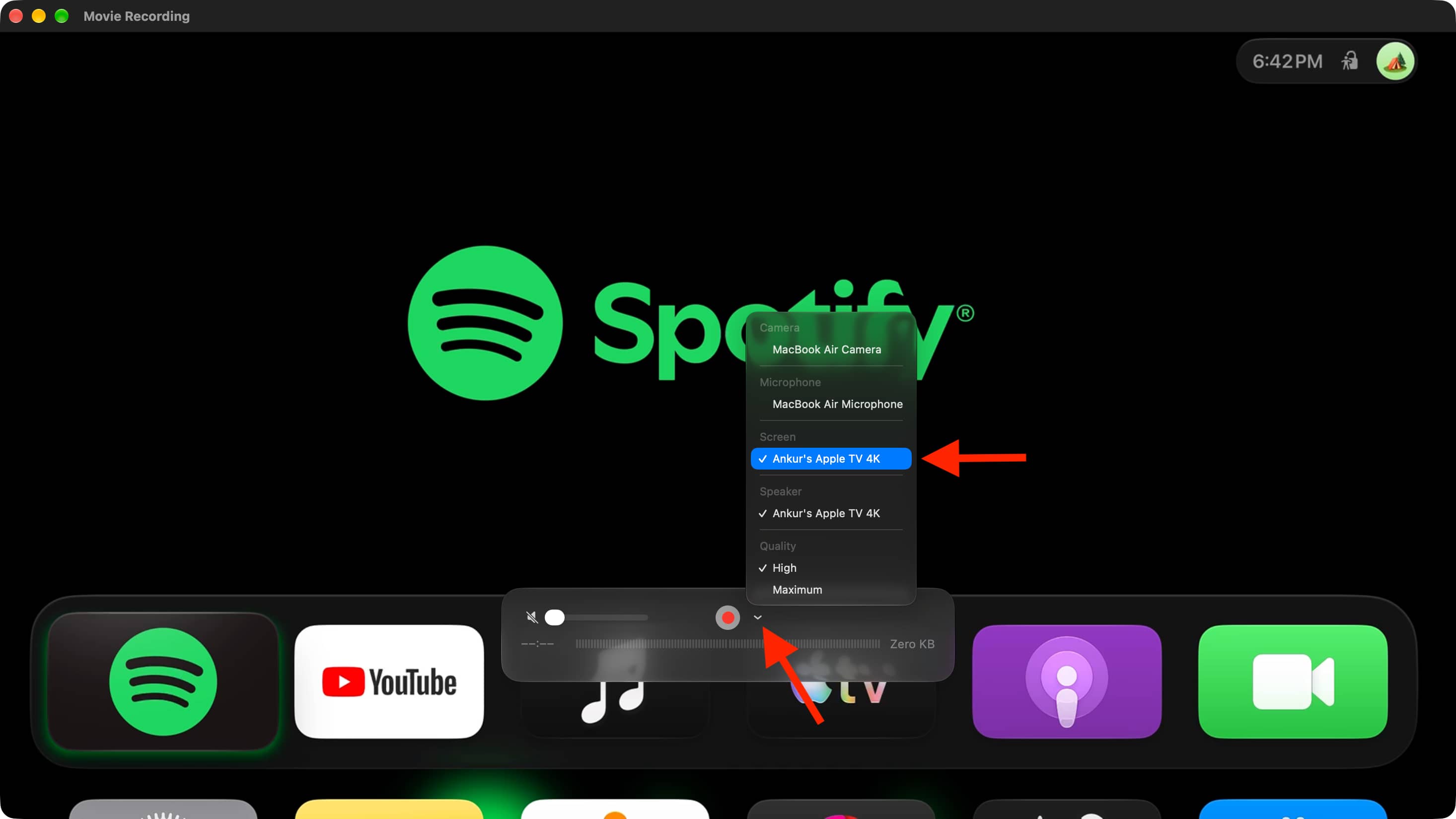
Click the tiny arrow and select Apple TV as the screen, as seen in the screenshot below.
Screenshot or screen record the QuickTime Player window.
The process is easy, but it depends on Apple TV showing inside QuickTime Player. If that doesn’t happen, here’s how to fix it.
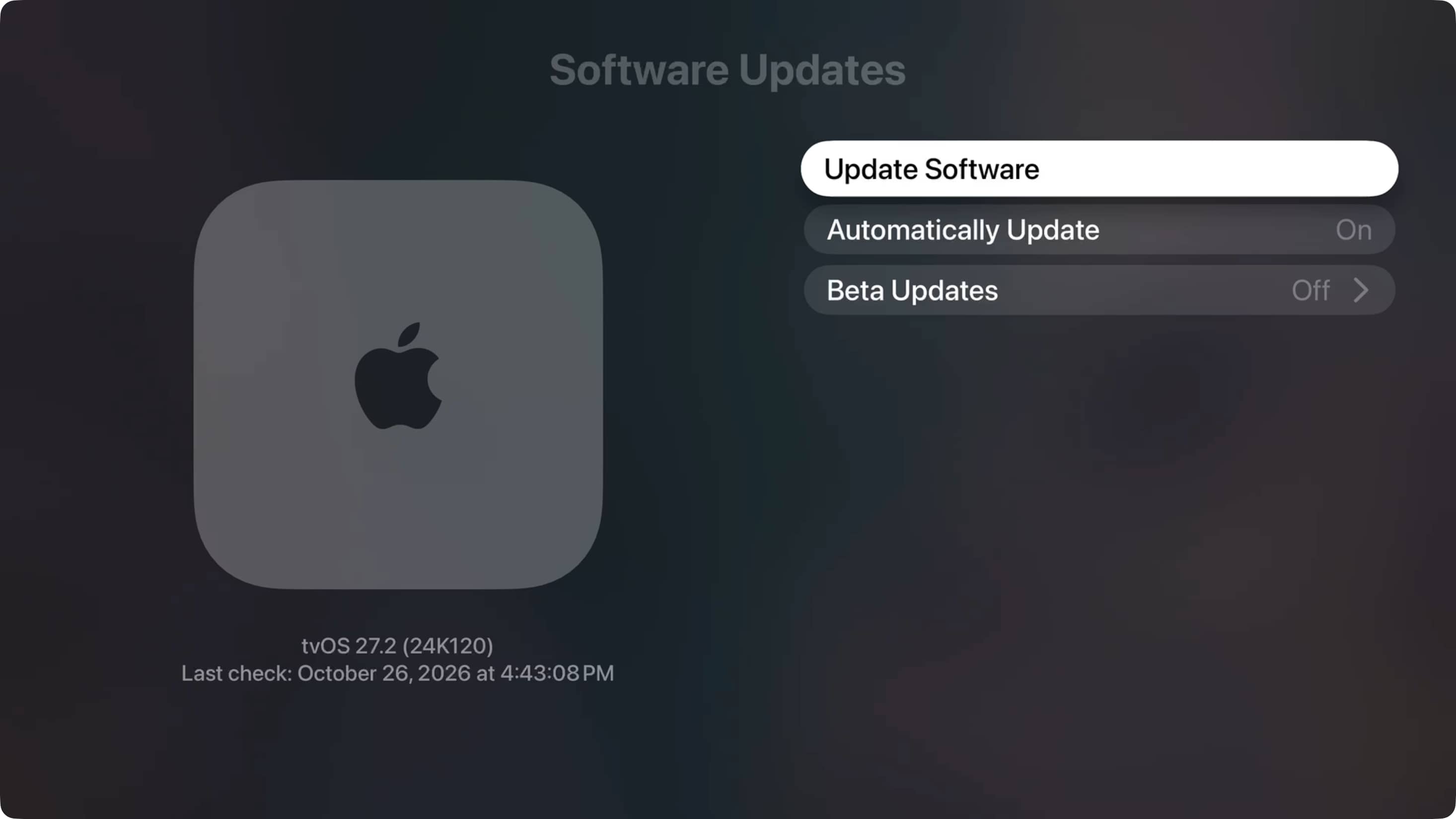
These tips are updated for tvOS 27 and macOS 27 Golden Gate , but they also help if your devices are running an older version of the software.
Quit and reopen QuickTime Player
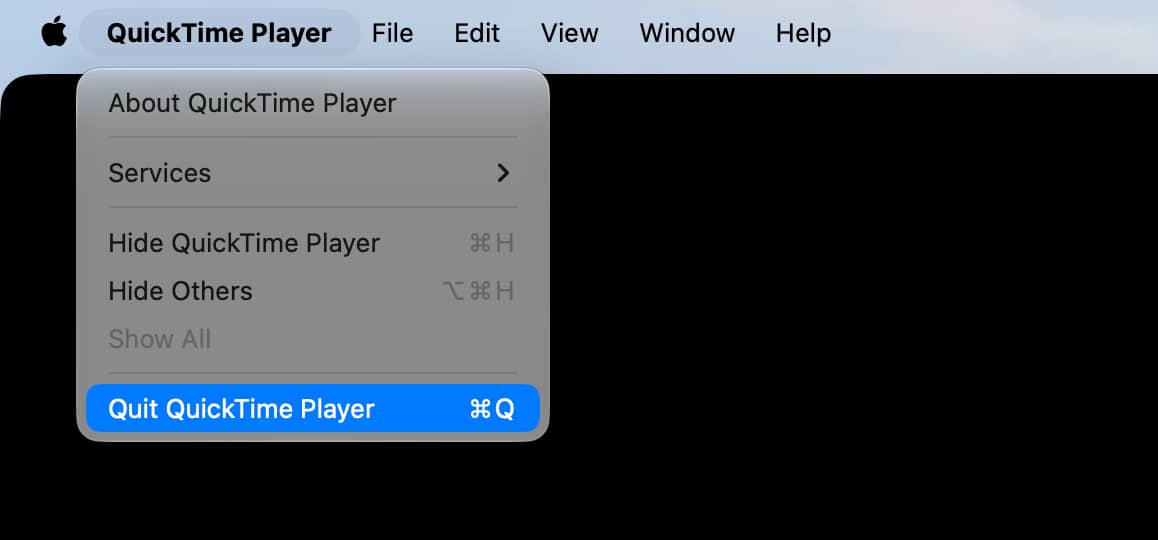
This is an important step, and you’ll need to do it now and every time you follow one of the fixes below.
Press Command + Q to quit the app .…