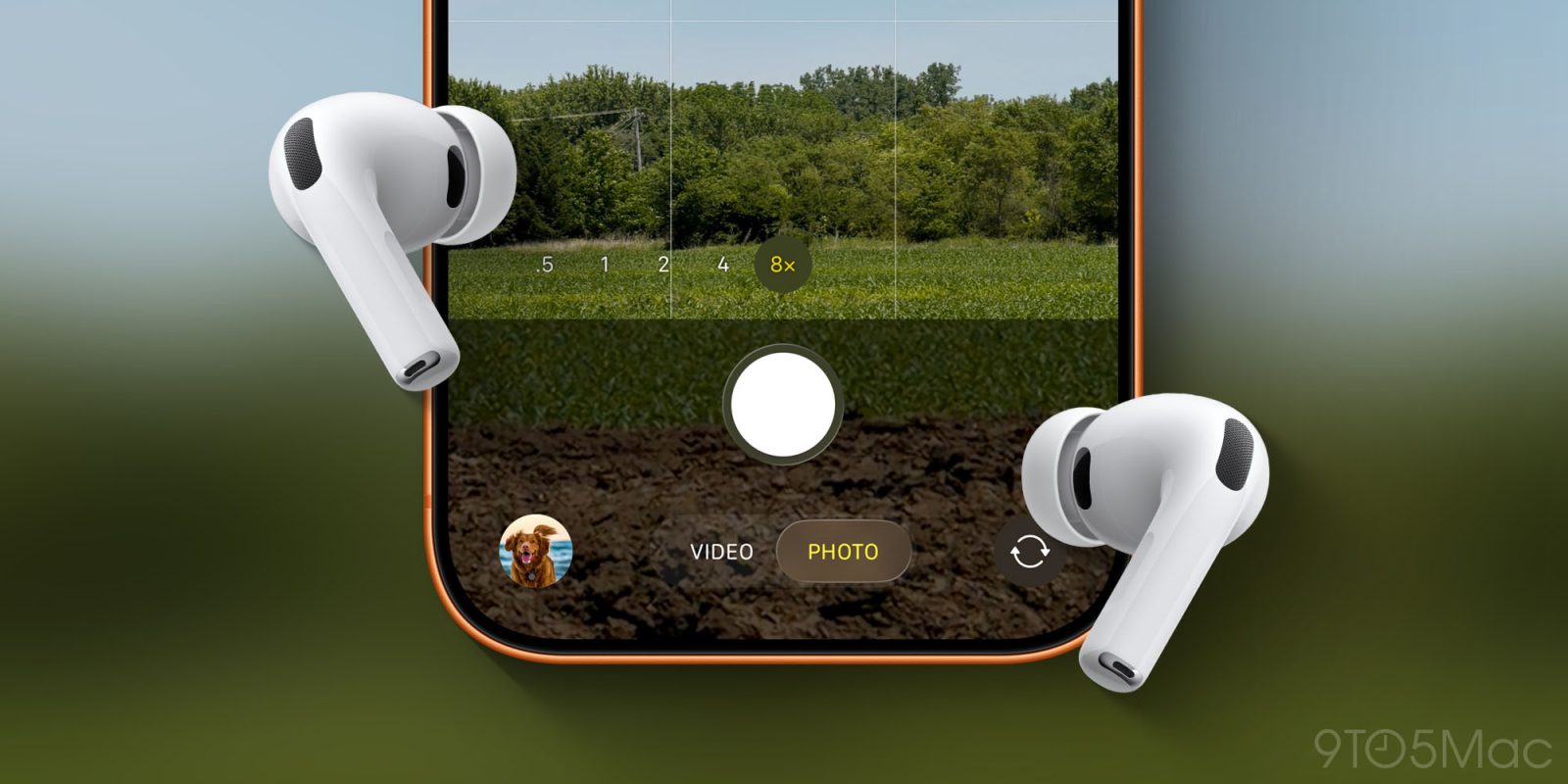
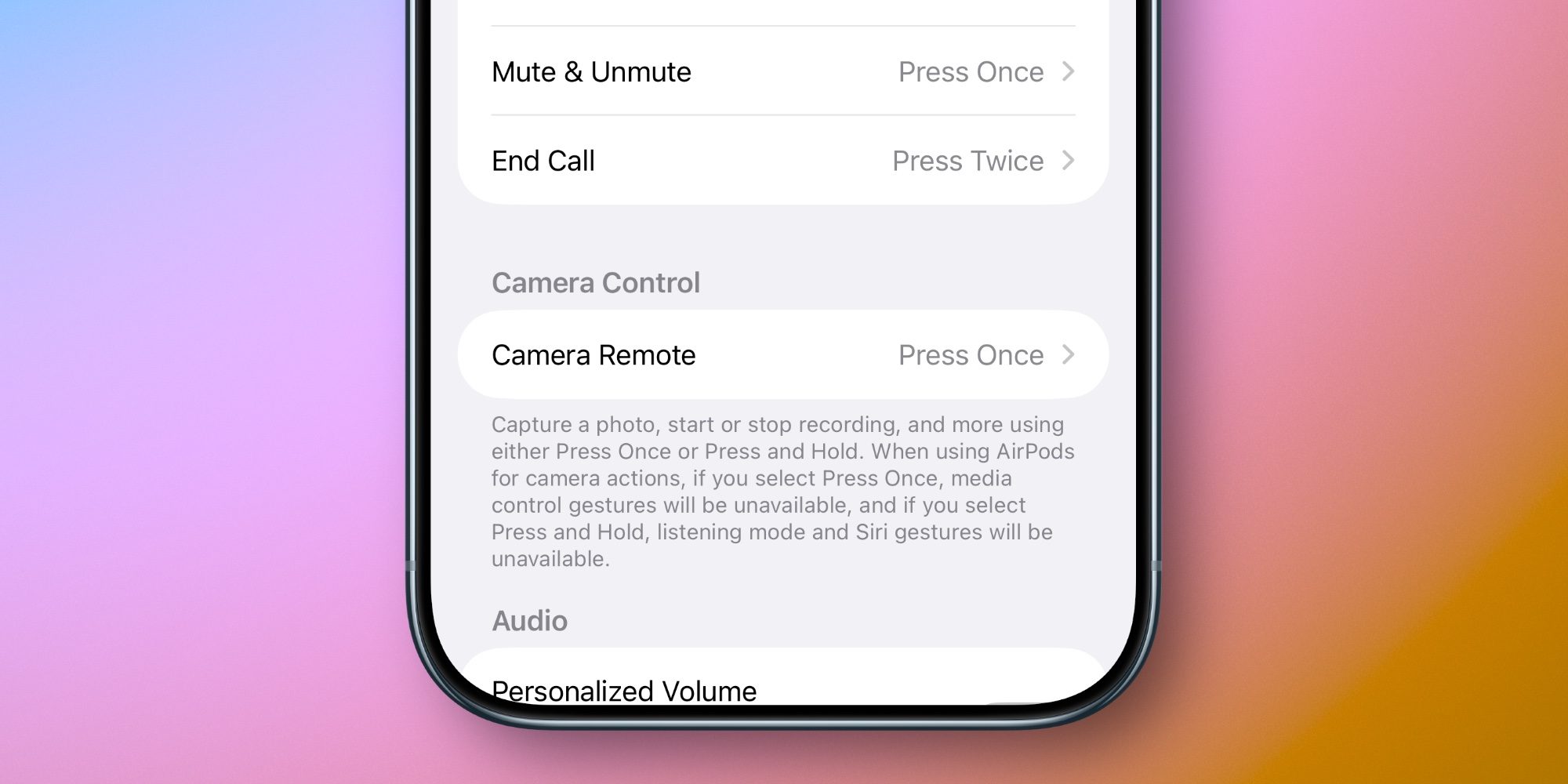
iOS 26 added a variety of new features for AirPods, including a Camera Remote setting to control your iPhone’s Camera app. Here’s how to use it. Camera Remote can be enabled in AirPods settings to control iPhone’s Camera app Have you ever wanted to take a photo or video without needing to have your iPhone within reach? Apple Watch has long offered a Camera Remote app that lets you control the iPhone’s camera remotely. And you can always use the built-in timer in the Camera app. But with iOS 26, Apple added a third option: Camera Remote for AirPods. Camera Remote is off by default, but you’ll find it inside the Settings app under AirPods settings in a ‘Camera Control’ section. Tap into the Camera Remote menu and select either ‘Press Once’ or ‘Press and Hold’ to enable your preferred gesture. Once it’s set up, any time your iPhone’s Camera app is open, you’ll be able to snap a photo, start and stop recording, and more by pressing your AirPods stem. Or the Digital Crown on AirPods Max.…