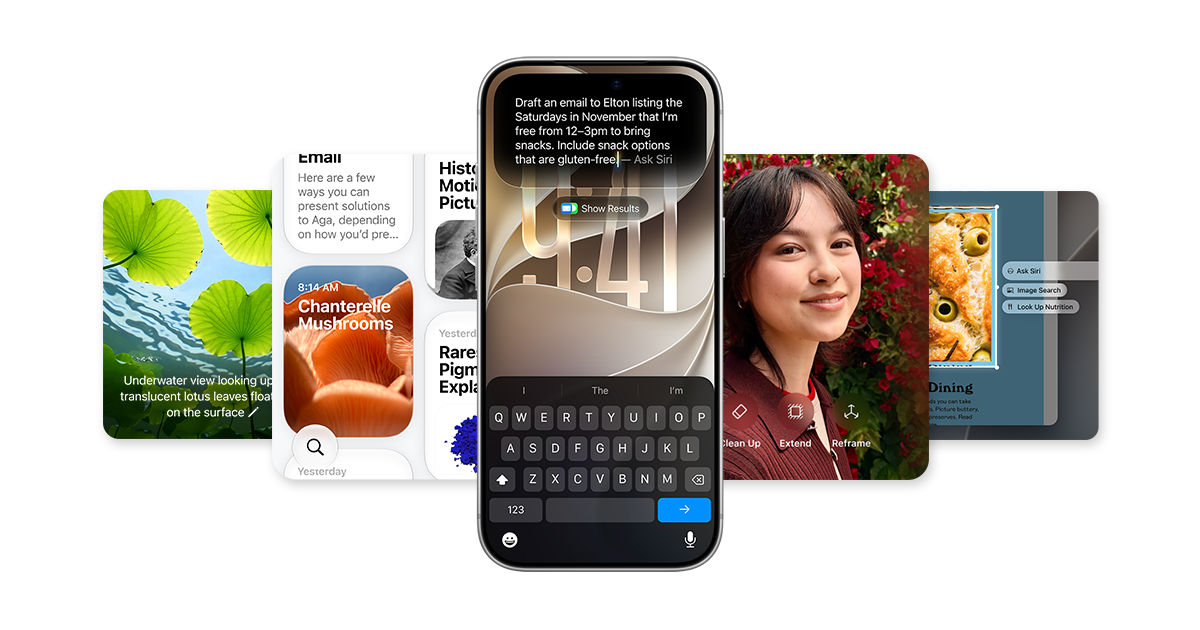
A practical guide to using Visual Intelligence on iPhone for flyers, text, and screen content, with availability limits to check first.
Apple Intelligence now includes Visual Intelligence on iPhone, a practical way to point your camera at something or inspect supported screen content and then ask follow-up questions or take actions. For everyday use, that can mean understanding a flyer, decoding unfamiliar text, or identifying details in front of you without switching apps. According to Apple, the feature is built into the Apple Intelligence experience rather than being a separate app. [1] [2]
A simple use case is a printed flyer with an event address, store hours, or a menu item you do not recognize. Open Visual Intelligence, aim the camera at the page, and use the options Apple documents to get information about objects or text. If the content is supported, you can also translate or summarize text, which is useful when you need a quick read rather than a full manual transcription.…