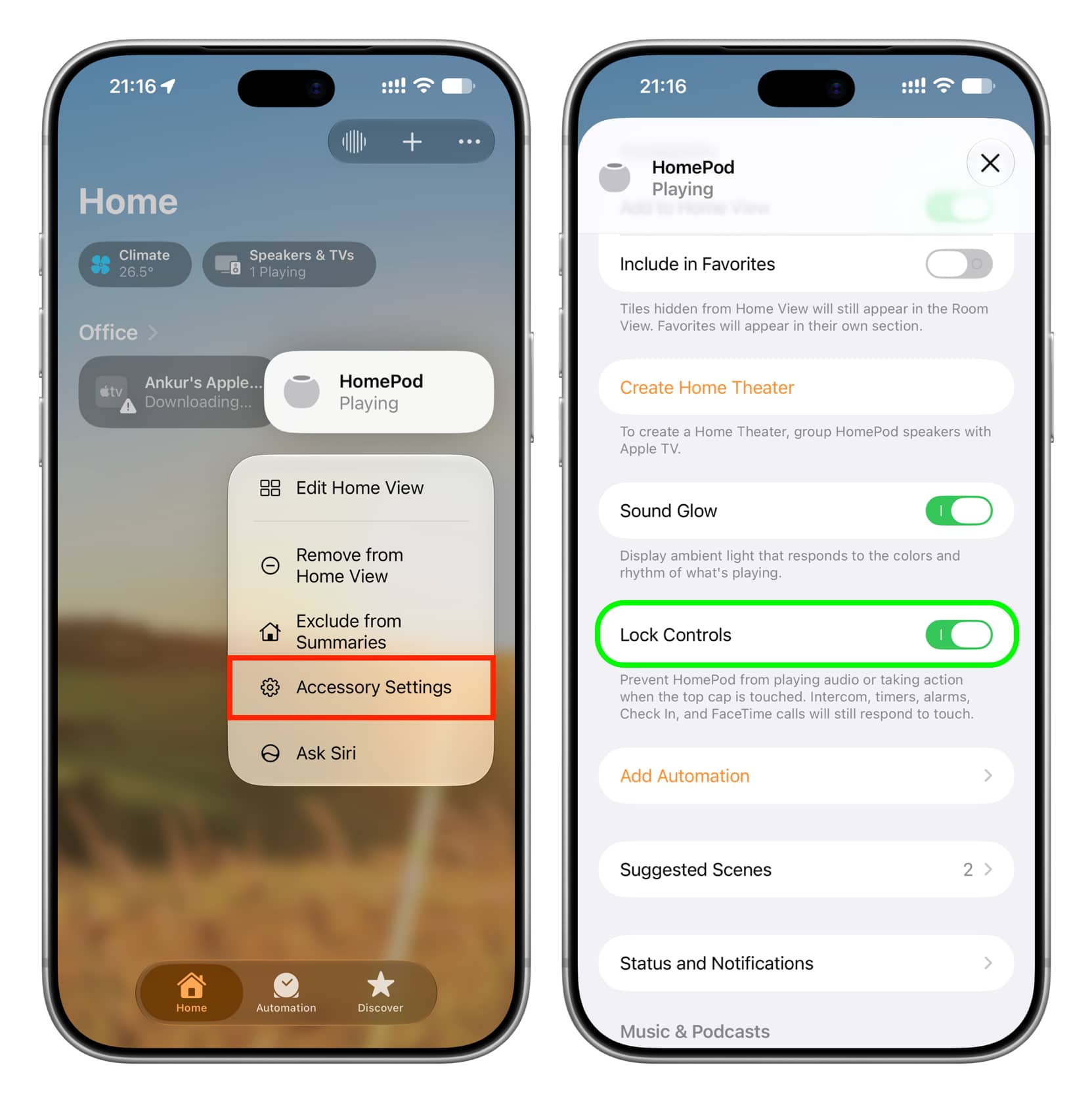
Learn how to use the new Lock Controls feature on your HomePod or HomePod mini running software version 27.2 or later to stop the top screen surface from responding to touches.
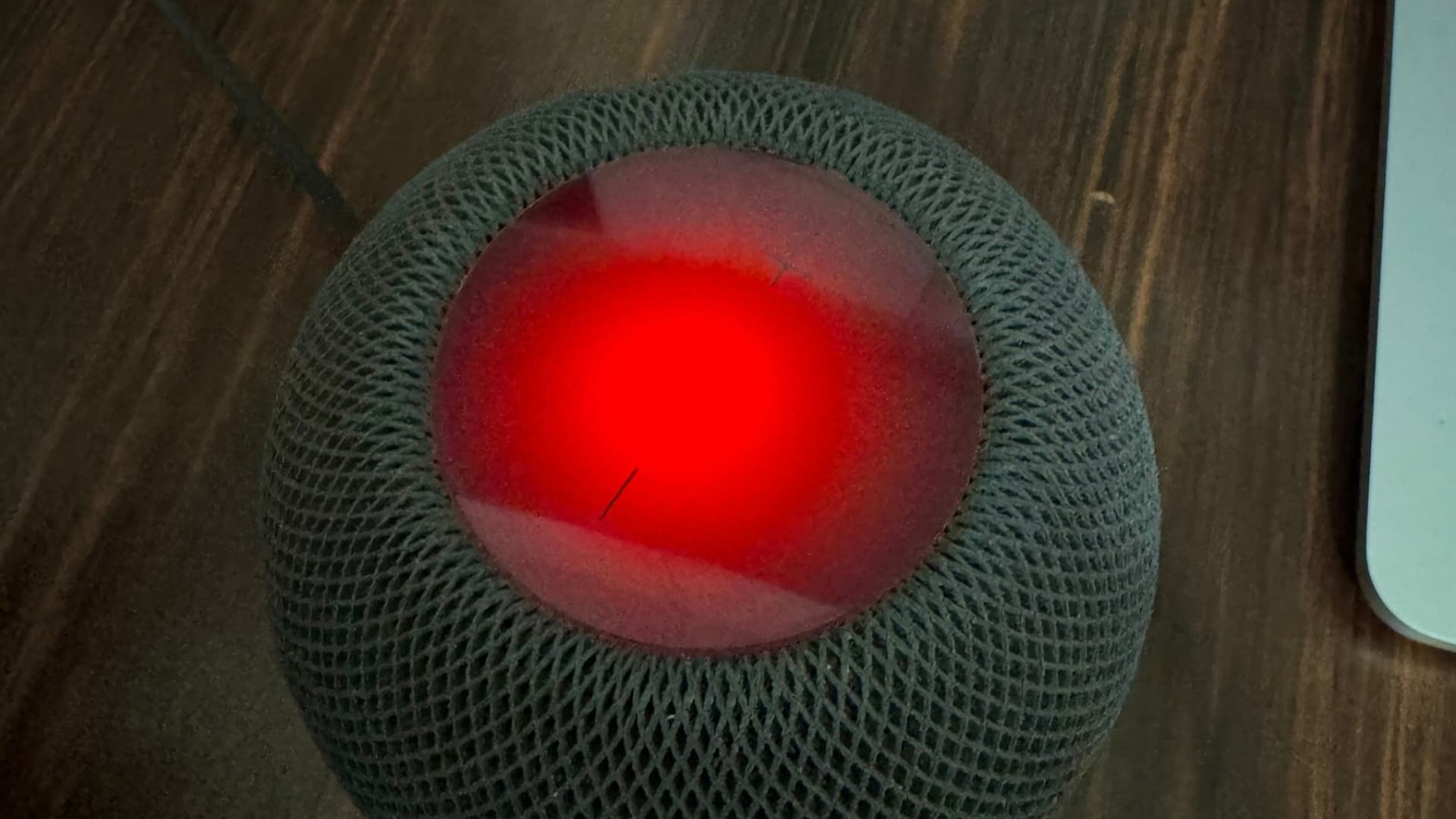
The circular light display on top of HomePod responds to touch so you can play, pause, invoke Siri, change volume, and more. However, many people don’t use the touch surface at all and prefer using voice (Siri) or their iPhone, iPad, Mac, or Apple TV to control playback on HomePod. If that’s you, HomePod settings now include a new option called Lock Controls that disables the touch surface to prevent accidental or intentional taps. It blocks you from changing the volume, invoking Siri, pausing or resuming playback, and more using the touch surface controls.
Activating Lock Controls also makes sense if you have children or guests in your house and you don’t want them adjusting the volume or interacting with the display.
I turned it on for one reason: to eliminate unrequested Apple Music playback.…