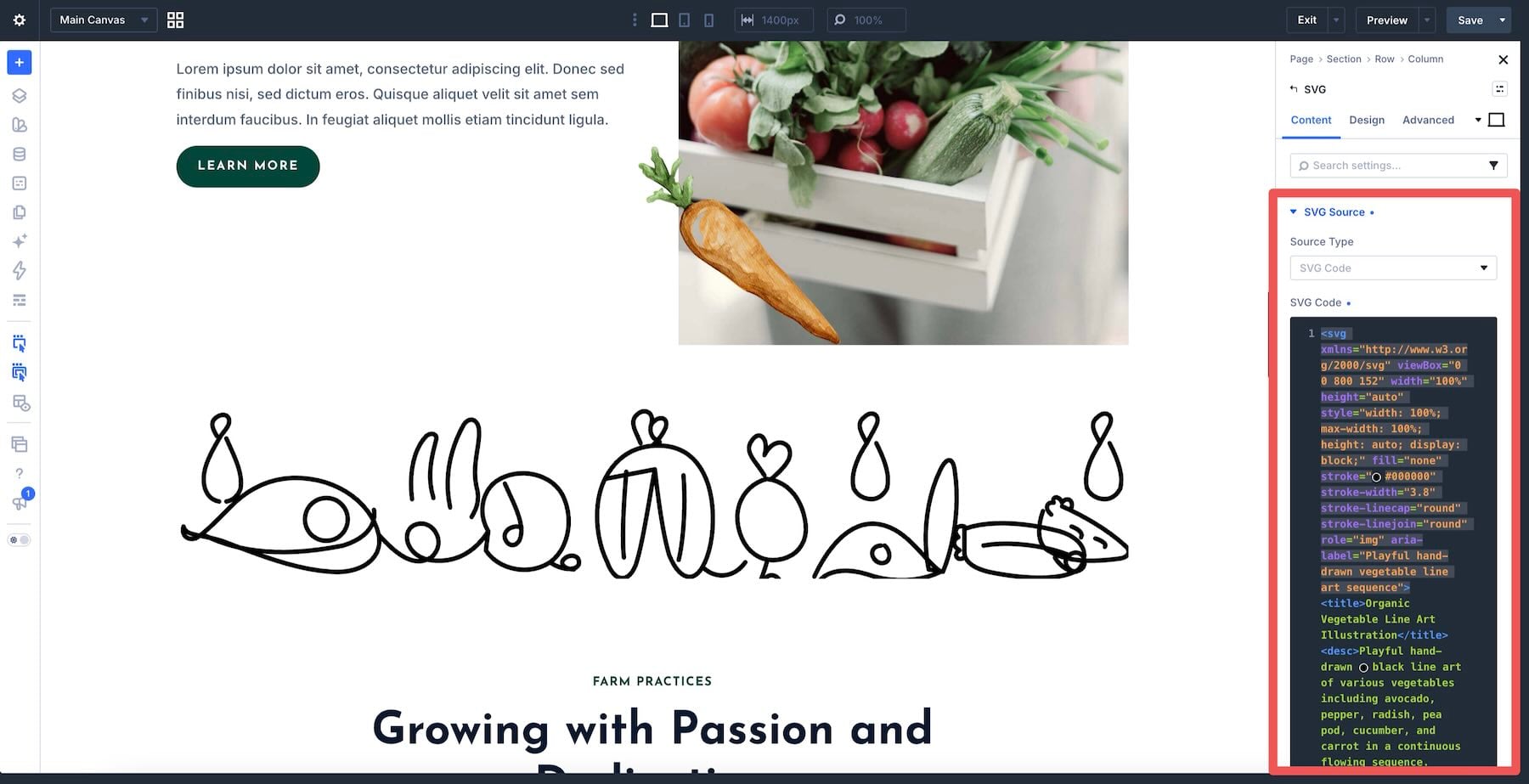
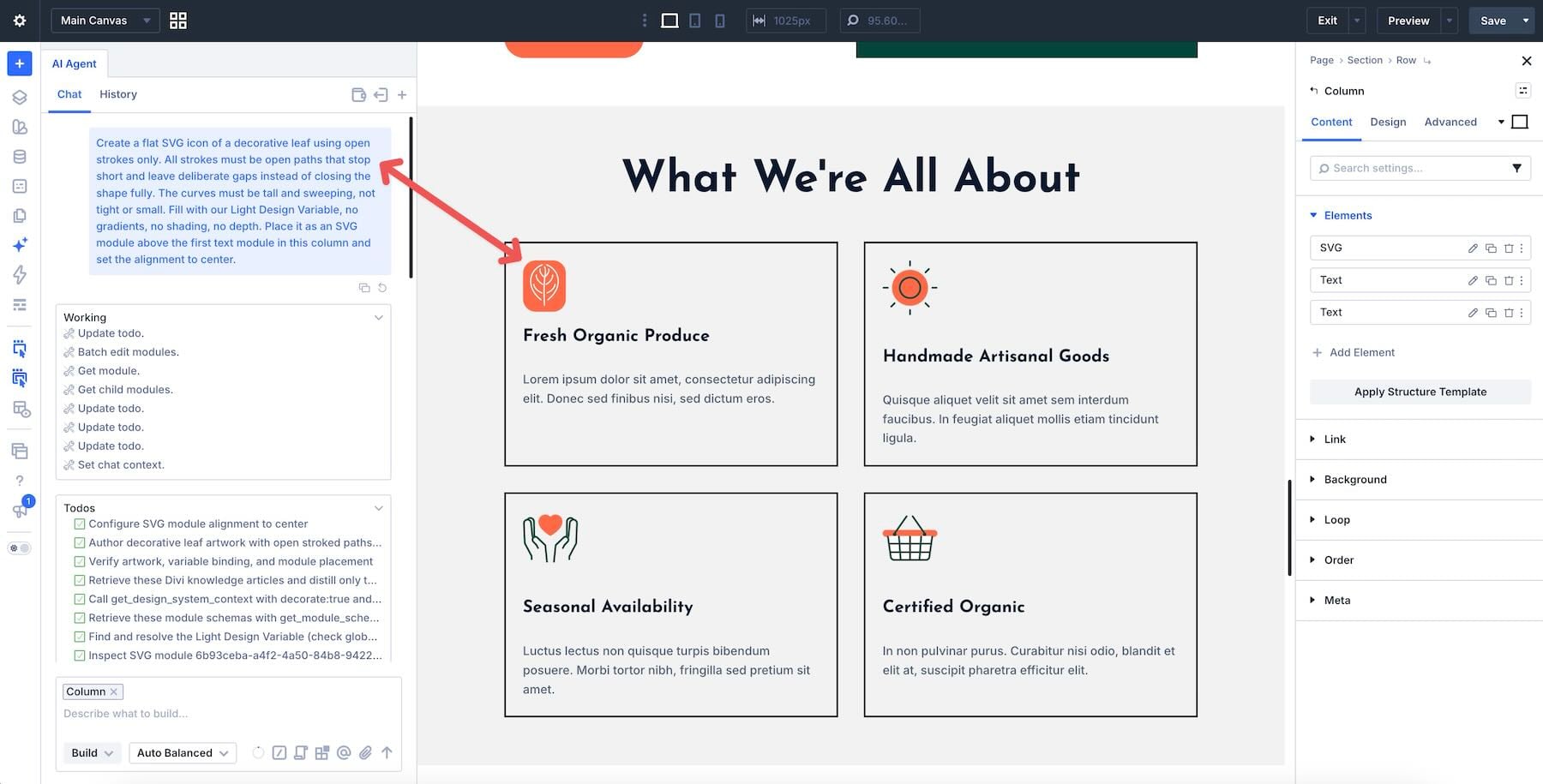
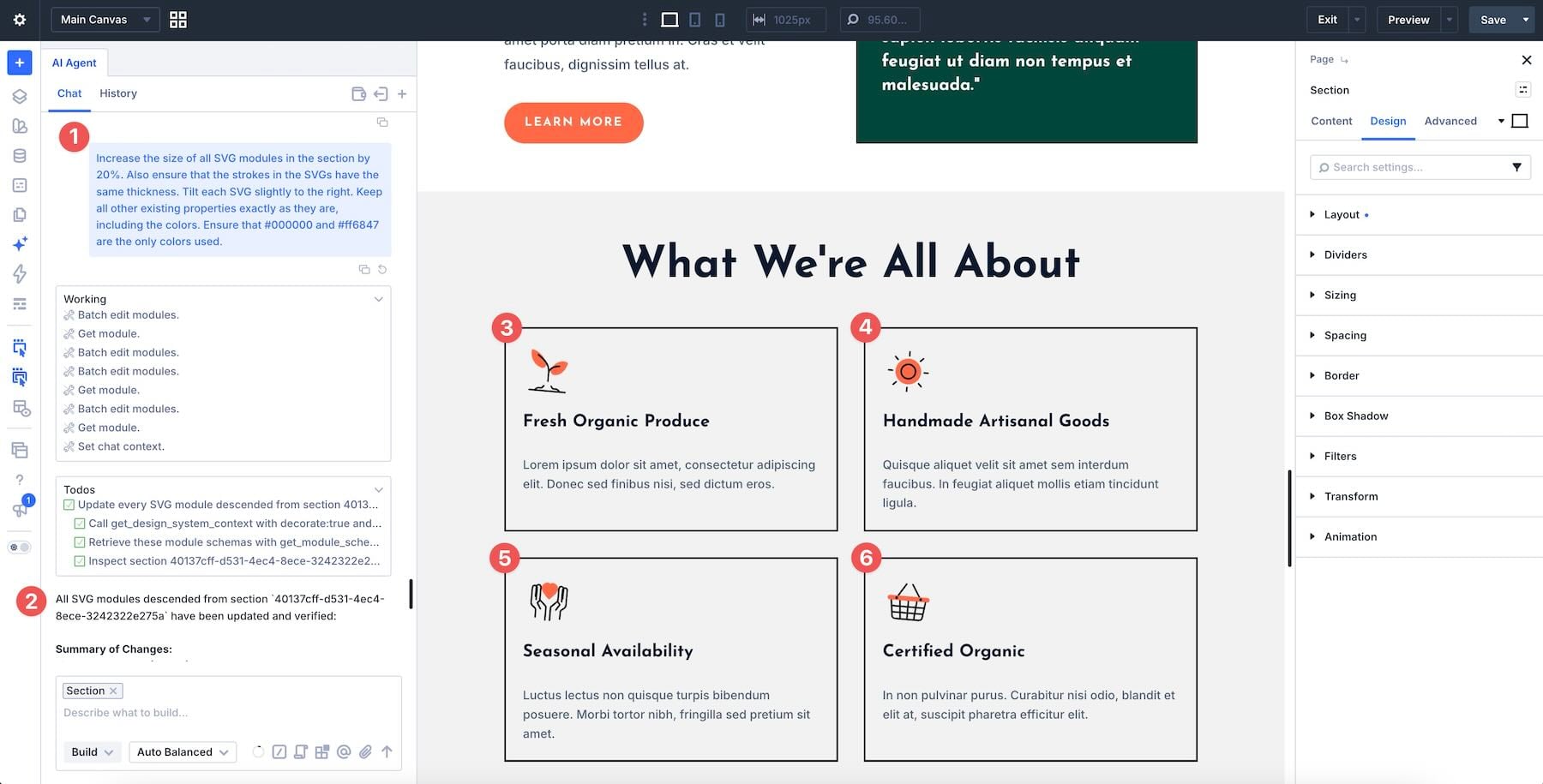
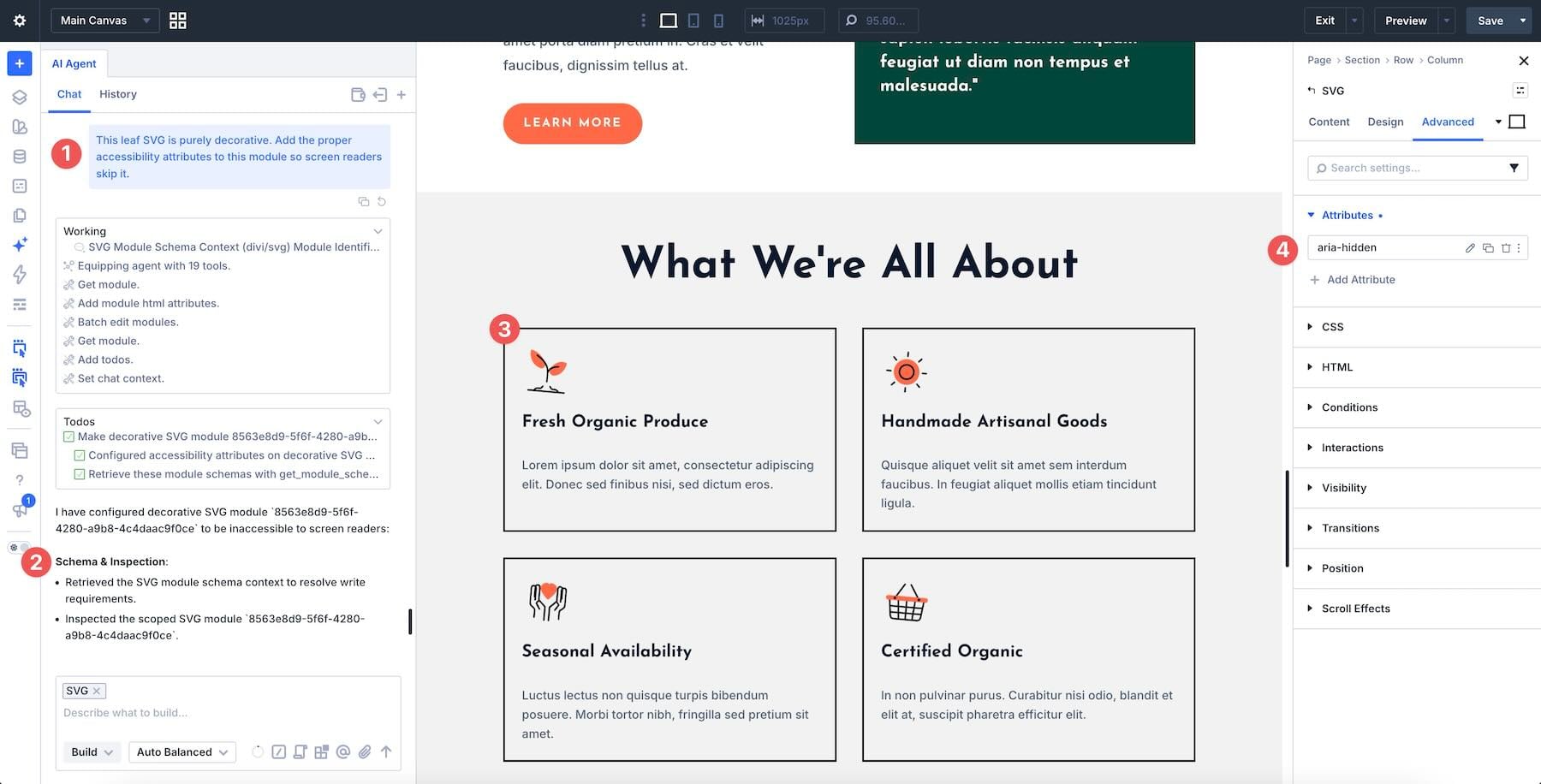
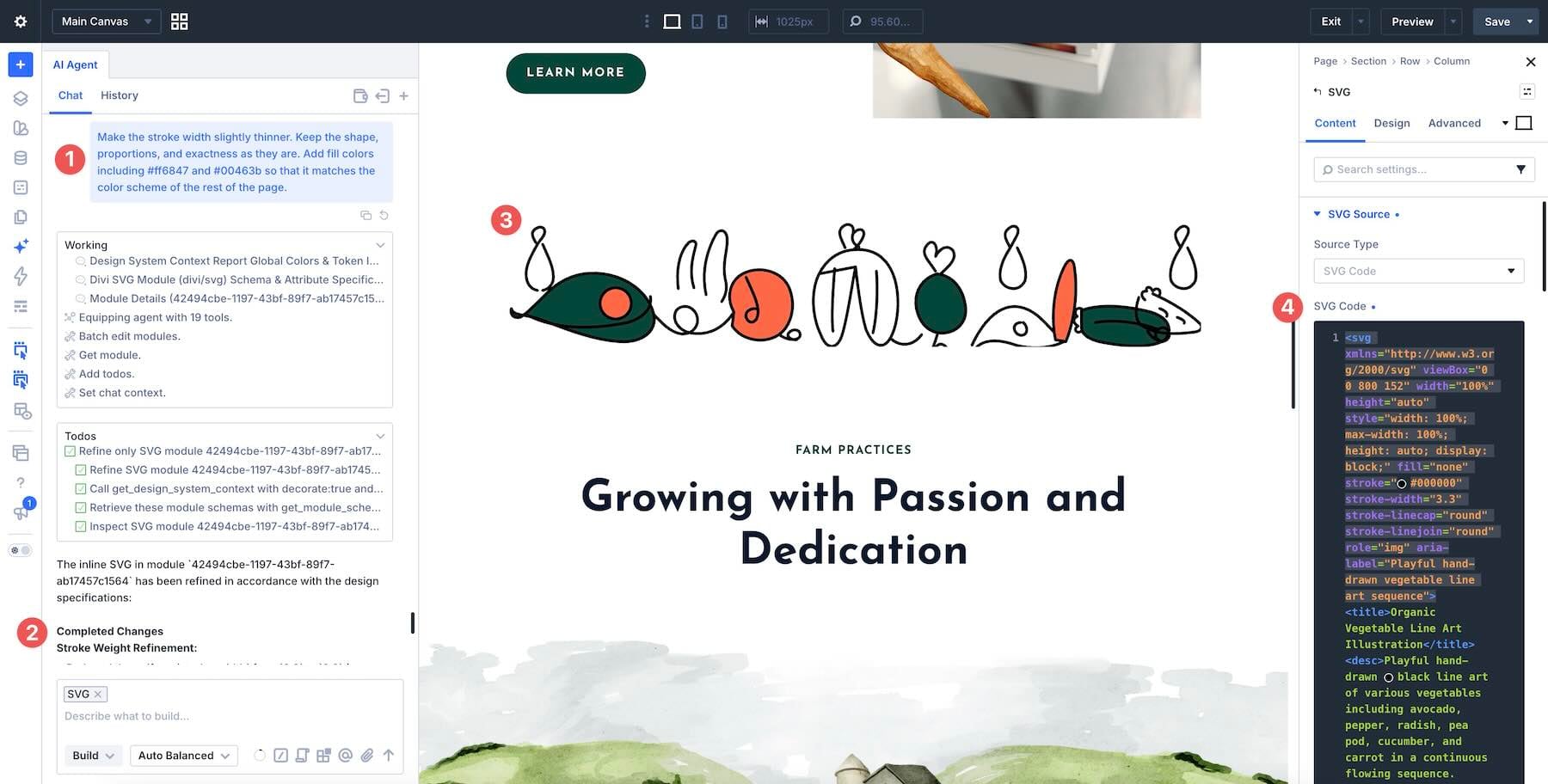
Divi AI Agents can create custom SVG graphics from plain-language instructions. Describe an icon, divider, or badge, specify its style and colors, and ask the agent to add it to your layout as an editable SVG Module.
In this tutorial, we’ll create a decorative leaf, refine it in the same conversation, and cover the prompt details that help preserve your design as you make changes.
1 What An SVG Is And Why Icons Use It
2 What Divi AI Agents Do On The Canvas
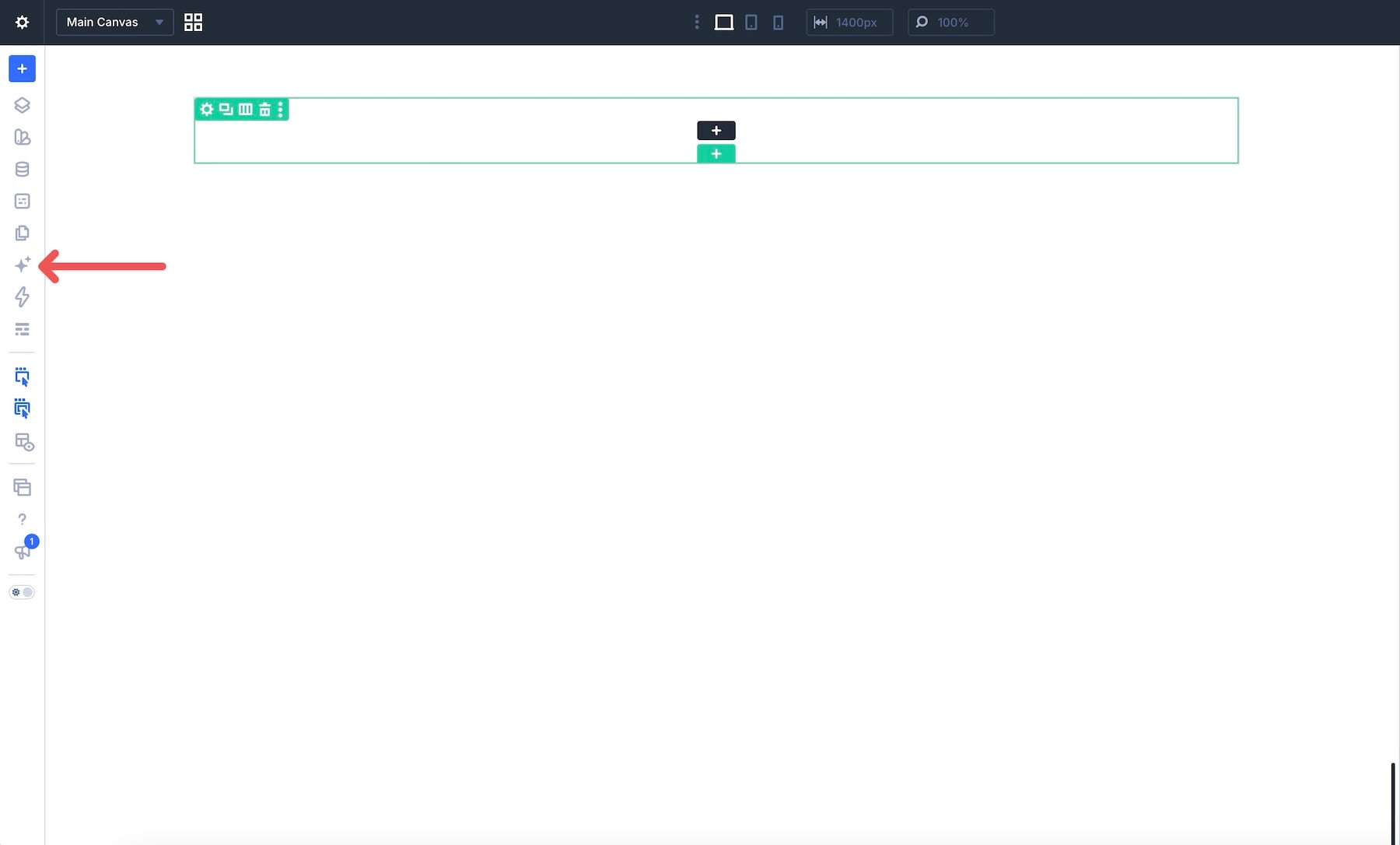
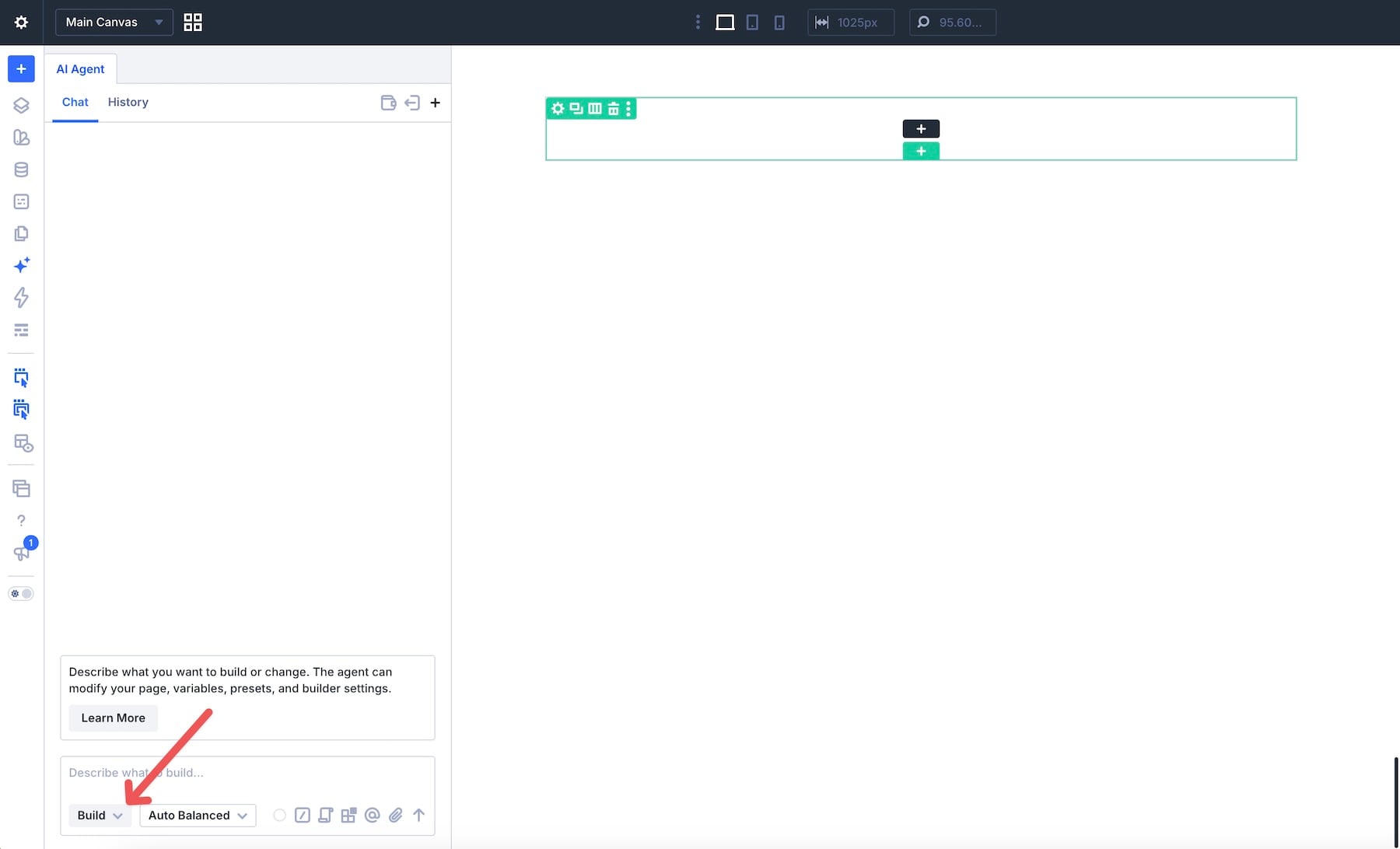
3 How To Create An SVG With Divi AI Agents 3.1 Open Divi AI Agents In Build Mode
3.2 Describe The Graphic
3.3 Attach The Column As Context
3.4 Write The Prompt
3.5 Refine The SVG In The Same Chat
3.6 Mark Decorative SVGs For Screen Readers
3.7 Edit SVGs You Already Have
4 Create Custom SVGs With Divi AI Agents
What An SVG Is And Why Icons Use It
SVG stands for Scalable Vector Graphics. A JPEG stores an image as a grid of colored pixels. Enlarge it enough, and those pixels become visible.…